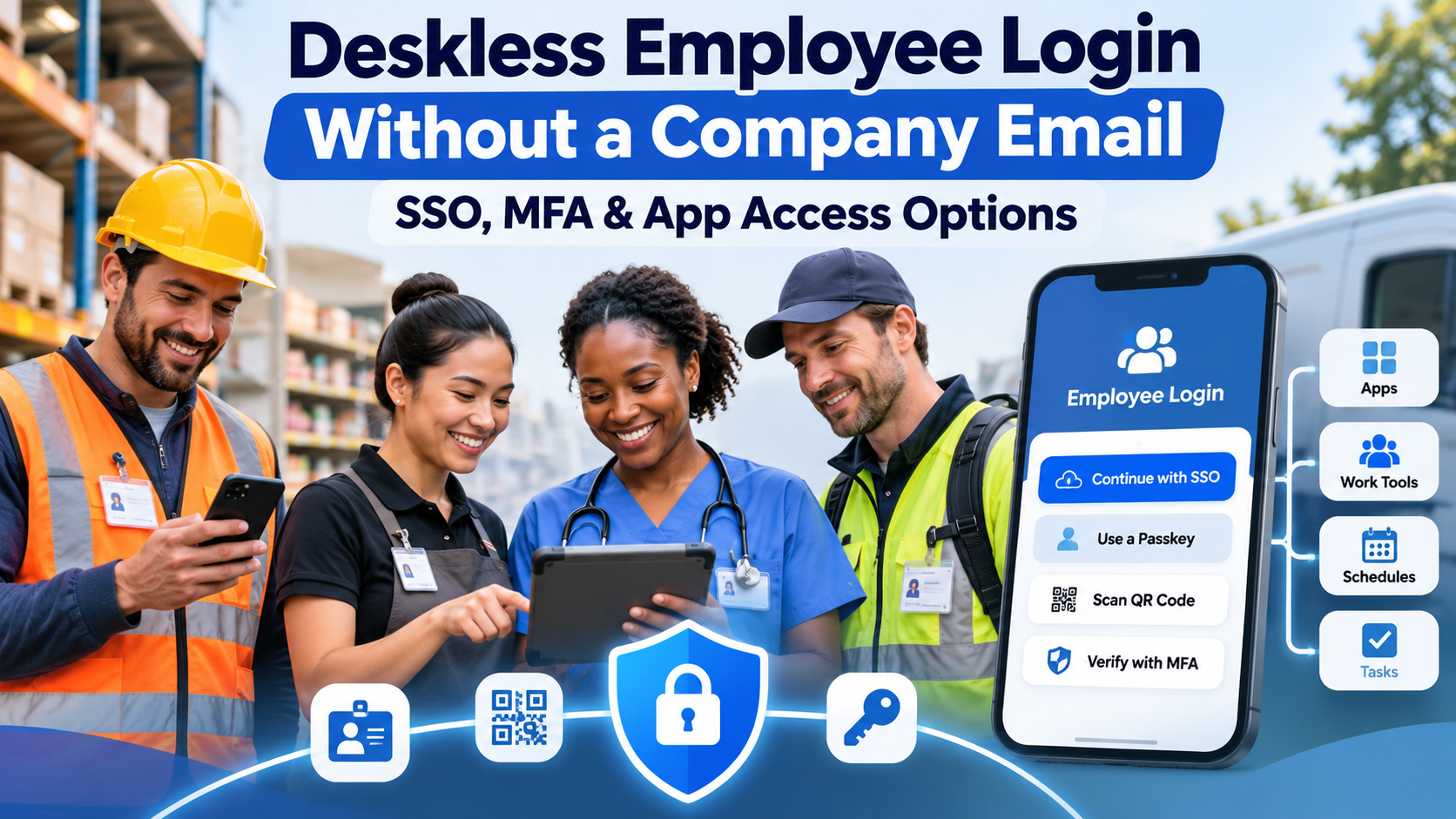
Deskless employees can securely access workplace applications without a company email address. Depending on the application and identity system, they can sign in using an employee ID, a verified phone number, single sign-on (SSO), multifactor authentication (MFA), passkeys, or an approved badge or QR-code workflow.
A corporate email inbox is not a requirement for secure authentication. Employees still need a verified digital identity, appropriate access permissions, and a reliable way to activate, recover, and close their accounts.
Platforms such as HubEngage, Microsoft Entra ID, Okta, Connect Frontline, and Simpplr address different parts of this challenge, from employee-facing apps to identity management and provisioning.
This guide explains how the authentication methods work, how to select an approach for personal and shared devices, and what HR and IT teams should verify before implementation.
What Is Deskless Employee Login Without a Company Email?
Deskless employee login without a company email allows frontline workers to access workplace applications without requiring an employer-issued email inbox.
Instead of entering a traditional corporate email address and password, an employee might use:
- A unique employee ID or assigned username.
- A verified mobile phone number.
- An SSO identity created through an identity provider.
- A passkey or registered authenticator.
- A supported employee badge credential.
- A QR code combined with a PIN, where the application supports that method.
The employer must still establish the employee’s identity, decide which applications they can access, and remove permissions when they are no longer needed.
For example, a hotel housekeeper might use a personal smartphone to access shift announcements, training materials, and company policies.
A warehouse associate could use an individually assigned badge to sign in to a shared handheld device.
A healthcare employee might use an organization-managed identity to access approved applications without ever using a corporate email inbox.
These experiences differ, but the underlying principle remains the same: an employee can have a secure digital identity without having a company email account.
Email addresses, usernames, and digital identities are different
An email address identifies a mailbox or an address used for communication. A username identifies an account during sign-in. A digital identity is the record an organization uses to recognize a person and manage their access.
For example, Microsoft Entra ID uses a user principal name (UPN) as a sign-in identifier. A UPN may resemble an email address, such as employee123@company.com, even when the employee has no corresponding mailbox.
This distinction is important when deciding whether an organization needs to purchase email services for every frontline worker.
| Concept | What it means | Is a corporate email inbox required? |
|---|---|---|
| Employee identity | A unique digital record representing a worker | No |
| Corporate email account | An employer-managed mailbox | No, for many workforce applications |
| Username or UPN | An account sign-in identifier | An email-like format may be required |
| Single sign-on (SSO) | Authentication through a trusted identity system for connected applications | No, but an identity account is required |
| Multifactor authentication (MFA) | Authentication using multiple independent factors | No |
| Passwordless authentication | Authentication without entering a conventional password | No |
| App provisioning | Creating, assigning, updating, or removing application access | No, if the systems support alternative identifiers |
Organizations can often provide workforce application access without issuing a mailbox to every employee.
However, removing corporate email does not eliminate identity verification, recovery, security, licensing, or access-management requirements.
An application might also require an email-formatted username even when it does not require a working email inbox. That requirement should be checked during software evaluation.
How Do SSO, MFA, and Passwordless Authentication Work Together?
SSO, MFA, and passwordless authentication address different parts of the login experience. They can work together, but they are not interchangeable.
Single sign-on (SSO) lets an employee authenticate through a trusted identity provider and access connected applications without maintaining a separate password for each application.
Multifactor authentication (MFA) requires evidence from at least two independent authentication factors, such as possession of a security key and knowledge of a PIN.
Passwordless authentication removes the need to enter a conventional password. Some passwordless methods also provide MFA and phishing resistance.
Consider a warehouse employee opening a training application:
- The employee receives a unique workforce identity linked to an approved personnel record.
- They open the training app on an authorized device.
- The application redirects authentication to the organization’s identity provider.
- The employee signs in using a registered passkey or another approved method.
- The identity provider returns a valid authentication assertion or token.
- The application checks the employee’s permissions and grants appropriate access.
The same identity may then be used to access other connected applications.
This reduces the need for separate passwords and gives IT a central place to apply authentication policies.
Does SSO require a corporate email address?
No. SSO requires a digital identity recognized by the identity provider, not necessarily a functioning corporate mailbox.
For example, an organization may create Microsoft Entra ID accounts with assigned UPNs and connect them to SSO-enabled applications without provisioning email mailboxes for those workers.
Other identity providers can support non-email usernames.
Okta’s username-format documentation, for instance, describes ways to change its default email-format restriction.
However, not every application accepts every identifier.
Before implementation, confirm:
- Whether the identity provider supports the proposed username format.
- Whether the application accepts the provider’s authentication method.
- Whether the application requires an email attribute even if it does not require a mailbox.
- How employees activate and recover accounts without email.
- How authentication and access permissions are removed when employment ends.
What is the difference between SSO and application provisioning?
SSO verifies identity during authentication. Provisioning creates, updates, assigns, or removes application accounts and permissions.
An employee may authenticate successfully through SSO but still be unable to open an application because they have not been assigned access.
Similarly, an employee who leaves the company could retain a separate application account if offboarding is not connected to the identity system.
Common standards include:
- SAML: Used for federated authentication between identity providers and applications.
- OpenID Connect (OIDC): An identity layer commonly used for modern application sign-in.
- SCIM: Used for exchanging identity information and automating user provisioning and deprovisioning.
Microsoft explains the distinction in its application provisioning documentation.
For organizations managing thousands of frontline employees, reliable provisioning is as important as the login experience.
Which Login Methods Work Best for Deskless Employees?
The right authentication method depends on employee device access, application sensitivity, workforce turnover, network conditions, and the organization’s ability to manage credential recovery.
A login method suitable for delivery drivers using personal smartphones may be unsuitable for workers sharing devices across shifts.
Deskless employee authentication methods compared
| Login method | Suitable environment | Main advantage | Main limitation |
|---|---|---|---|
| Employee ID + password | Basic applications and legacy systems | Does not require email | Password security and recovery burden |
| Phone number + SMS OTP | Basic mobile access and transitional workflows | Familiar sign-in experience | SIM swapping, phishing, message delivery failures |
| Authenticator app | Personal or assigned devices | Reduces dependence on SMS | Enrollment, device loss, and recovery |
| FIDO2 passkey | Supported personal or individually assigned devices | Passwordless and phishing-resistant | Device compatibility and recovery planning |
| Hardware security key | Higher-risk access or workers without smartphones | Strong authentication without personal phone ownership | Issuance, replacement, and hardware compatibility |
| QR code + PIN | Supported frontline shared-device workflows | Reduces manual credential entry | Not automatically MFA or phishing-resistant |
| SSO through an identity provider | Organizations using multiple connected applications | Centralized authentication policies | Integration and identity management requirements |
| Shared-device authentication | Warehouses, retail, healthcare, and manufacturing | Supports individually attributable access on shared equipment | Requires reliable session separation and sign-out |
These methods are not mutually exclusive.
For example, an employee may use a passkey to authenticate with an SSO provider, which then grants access to several workplace applications.
1. Employee ID and password
An employee ID is a straightforward alternative to an email address as a login identifier.
A company might assign the username EMP10482 to a warehouse employee and allow the worker to sign in using an individually issued password.
This works when applications support custom usernames.
However, replacing email addresses with employee IDs does not eliminate password-related security risks.
IT should implement appropriate password policies, protections against repeated login attempts, secure recovery procedures, and stronger authentication for sensitive applications.
Avoid assigning passwords based on predictable information such as birth dates, employee numbers, or store identifiers.
2. Phone number and SMS OTP
Phone-number authentication typically requires employees to enter a registered number and receive a one-time code.
For example, a retail associate opens the workplace app, enters a verified phone number, receives a code, and uses it to sign in.
The advantage is convenience. Employees do not need a corporate inbox or a separate username they must remember.
However, SMS authentication introduces several risks:
- SIM swapping and unauthorized number transfers.
- Recycled phone numbers.
- Phishing attacks targeting one-time codes.
- Delayed messages and limited mobile coverage.
- Dependence on employees having suitable personal phones.
- Privacy concerns when employees must provide personal contact information.
A phone number is a changeable contact attribute, not an ideal permanent workforce identity.
Employers should connect phone numbers to stable employee records, securely verify number changes, and offer alternative authentication methods.
A single SMS code used by itself is not automatically MFA. It may serve as one authentication factor, depending on the system.
3. Authenticator apps
Authenticator applications can support several authentication methods, including time-based one-time passwords (TOTP), push approvals, and cryptographic credentials.
The security properties depend on the specific method.
TOTP applications generally generate codes without requiring cellular reception after enrollment. This can be useful in buildings with poor mobile coverage.
However, the employee still needs connectivity to communicate with a cloud application during online sign-in.
Push-based authentication usually requires a network connection.
Manually entered TOTP codes can also be stolen through phishing. They should not be treated as equivalent to phishing-resistant authentication.
For organizations using personal devices, IT should explain what the authentication app does, what information it collects, and how access is recovered when an employee changes phones.
4. Passwordless authentication with passkeys
Passkeys use public-key cryptography to authenticate users without conventional passwords.
An employee may open an application and verify their identity using a device PIN, fingerprint, or another supported local verification method.
Instead of transmitting a reusable password, the authentication process uses cryptographic credentials associated with the legitimate service.
This makes appropriately implemented passkeys resistant to common credential-phishing attacks.
Organizations should distinguish between:
Device-bound passkeys: Credentials associated with a particular device or authenticator.
Synced passkeys: Credentials that can be made available across compatible devices through an approved synchronization system.
Hardware FIDO2 security keys: Physical authenticators that may be suitable for employees who cannot use personal smartphones.
Each option affects portability, administrative control, employee privacy, and recovery.
The NIST SP 800-63B-4 Digital Identity Guidelines address modern authentication methods, including syncable authenticators and phishing resistance.
For sensitive applications, phishing-resistant authentication should be preferred where practical and consistent with the required security assurance.
5. QR-code and badge-based login
QR codes and employee badges can reduce the need to type usernames on shared devices.
However, scanning a QR code does not automatically prove that the person scanning it is the authorized employee.
QR codes can serve different purposes:
- Directing employees to an application download.
- Starting account activation.
- Identifying an employee account.
- Initiating an authentication flow.
- Acting as one part of an authentication process.
These functions should not be confused.
Microsoft Entra ID provides a useful example.
Its documented frontline QR-code authentication combines an individual QR code with a numeric PIN.
Microsoft explicitly classifies this method as single-factor authentication because the QR code acts as an identifier and the PIN serves as the credential.
Microsoft recommends additional security controls, including compliant-device requirements, approved network conditions, and stronger authentication for higher-risk access.
See Microsoft’s QR-code authentication documentation.
For buyers, the key question is not whether a product supports QR codes.
It is whether the complete authentication process provides appropriate assurance and protects employee sessions.
How Does MFA Work for Employees Without Company Email Accounts?
MFA does not inherently require a corporate email address.
Authentication factors are generally divided into three categories.
| Authentication factor | Meaning | Example |
|---|---|---|
| Something you know | Knowledge controlled by the user | Password or PIN |
| Something you have | Possession of an authenticator | Security key or registered smartphone |
| Something you are | Biometric characteristic | Fingerprint or facial verification |
A password combined with a properly implemented SMS code can provide two-factor authentication.
Two passwords do not provide MFA because they rely on the same type of factor.
An appropriately configured passkey requiring local user verification may also satisfy multifactor requirements, depending on the authenticator and applicable policy.
SMS OTP vs. authenticator apps vs. passkeys
For new deployments, phishing-resistant passkeys or equivalent cryptographic methods are generally preferable where supported by the workforce and applications.
Authenticator apps using TOTP can be a practical alternative when stronger methods are not available.
SMS-based authentication may still serve lower-risk or transitional requirements, but organizations should account for its known security limitations.
NIST’s authentication guidance categorizes authentication delivered over the public switched telephone network, including SMS, as restricted.
It also distinguishes manually entered OTPs from phishing-resistant methods.
The correct choice depends on the application’s sensitivity, employee circumstances, available devices, and required assurance level.
Microsoft Entra authentication changes in 2026–2027
Organizations using Microsoft Entra ID should review Microsoft’s published retirement schedule for Microsoft-provided SMS and voice authentication.
According to Microsoft’s documentation:
| Date | Announced change |
|---|---|
| September 1, 2026 | Passkeys became automatically enabled for users configured for SMS or voice, with registration prompts subject to Microsoft’s rollout and migration controls |
| February 1, 2027 | Microsoft-provided SMS and voice authentication is scheduled to retire for most affected users |
| July 1, 2027 | A later retirement deadline applies to Global Administrators and designated external users |
The February 2027 change includes Microsoft-provided SMS first-factor sign-in.
Internal guest users follow the February retirement schedule rather than the later external-user deadline.
Organizations with a business or technical need to continue SMS or voice authentication may use supported customer-managed telephony providers.
This is not a universal retirement of SMS authentication across every identity provider.
It is a change to Microsoft’s native delivery service.
Microsoft also documents other authentication options, including supported TOTP methods, that may remain available according to organizational policies.
Employers should identify affected workers, register suitable replacement methods, and test recovery before enforcement begins.
Official reference: Microsoft Entra SMS and voice authentication retirement.
How Should Companies Secure Shared-Device Logins?
Shared-device authentication requires particular attention because multiple employees use the same physical equipment.
A tablet, handheld scanner, or kiosk may expose another employee’s information if sessions are not separated correctly.
For example, a manufacturing employee might finish a shift without signing out of a production application.
If the next worker can access the previous employee’s records or perform actions under their identity, the organization loses confidentiality and accountability.
Secure shared-device access therefore requires more than convenient authentication.
Recommended controls for shared devices
Organizations should implement the following controls according to their environment and risk requirements:
- Individual identities: Employees should authenticate using their own accounts when activity must be attributable to individuals.
- Device management: Managed equipment should receive appropriate security updates, configuration restrictions, and application controls.
- Restricted access: Workers should access only the applications and information required for their duties.
- Suitable authentication: Supported QR, badge, passkey, or other authentication workflows should be selected based on device compatibility and security requirements.
- Session separation: Applications must prevent employees from accessing another worker’s tokens, cached data, files, or authenticated session.
- Reliable sign-out: Logging out should terminate relevant sessions and remove access to the previous employee’s protected information.
- Risk-based policies: Sensitive applications or access outside approved workplace conditions may require stronger authentication.
- Handover testing: IT should test device loss, network interruptions, app crashes, and situations where the previous worker fails to sign out.
How Microsoft Entra Shared Device Mode helps
Microsoft Entra Shared Device Mode supports compatible shared Android, iOS, and iPadOS devices.
When applications support the feature, employees can sign in to supported applications and sign out across those applications when their shift or task ends.
However, unsupported applications do not automatically receive the same shared-device sign-in and sign-out behavior.
Organizations must test their complete application environment rather than assuming that device-wide session cleanup works everywhere.
Microsoft provides implementation details in its Shared Device Mode overview.
IT should also examine downloaded files, local application storage, notifications, browser sessions, and offline information after sign-out.
What if employees do not have personal smartphones?
Employers should provide a usable authentication path that does not depend on smartphone ownership.
Possible alternatives include:
- Company-managed devices.
- Compatible hardware security keys.
- Approved badge-based authentication.
- Supported shared-device authentication.
- Securely administered temporary access procedures.
The appropriate option depends on the applications, device environment, and security requirements.
Employees should not have to share personal passwords with supervisors or coworkers to perform their jobs.
Which Platforms Support Deskless Employee Login Without Email?
Deskless workforce access often involves two different software layers.
The first is identity and access management, which controls employee authentication and permissions.
The second is employee-facing applications, such as communication apps, intranets, scheduling systems, and training platforms.
Some vendors focus on one layer, while others provide features across multiple layers.
The following comparison uses published vendor documentation. It is not based on independent product testing, and the platforms are not all direct substitutes.
Platform comparison
| Platform | Primary role | Relevant approach | Main consideration |
|---|---|---|---|
| HubEngage | Employee communication and experience | Mobile access, QR onboarding, SSO, MFA | Verify no-email enrollment and identity-provider compatibility |
| Microsoft Entra ID | Enterprise identity and access management | Directory identities, passkeys, SSO, QR/PIN, shared-device support | Licensing, app compatibility, and device configuration |
| Okta | Workforce identity and authentication | Configurable usernames, SSO, FastPass, FIDO2 | Enrollment, recovery, policy, and shared-device requirements |
| Connect Frontline | Frontline identity and provisioning | ConnectID, QR activation, SSO, HR-linked identities | Integration coverage and lifecycle synchronization |
| Simpplr | Employee intranet and experience | Alternate employee IDs, mobile login, supported SSO | Entitlements and MFA support for the exact login configuration |
1. HubEngage — Employee app access and communication
Suitable for: Organizations seeking employee communication, workplace information, recognition, surveys, and related mobile experiences for frontline teams.
HubEngage describes mobile intranet capabilities that include SSO, MFA, QR-code onboarding, and support for frontline access.
Its employee-facing approach is relevant to organizations whose workers need access to company information but do not regularly use corporate email.
The platform’s role differs from that of a dedicated enterprise identity provider. It focuses on employee applications and the authentication integrations that support access to them.
Key capabilities: Mobile access, employee communication, role-based content, SSO-related access controls, and QR-assisted onboarding.
Considerations: Buyers should confirm the exact no-email activation method, supported identifiers, identity-provider integrations, MFA enforcement, and account deactivation behavior.
They should also test shared-device sign-out where applicable. QR onboarding alone does not establish that all sessions are securely managed.
HubEngage is most relevant when secure access is part of a broader employee communication or engagement initiative rather than the organization’s primary identity-management requirement.
2. Microsoft Entra ID — Enterprise identity infrastructure
Suitable for: Organizations using Microsoft identity services that want centrally managed authentication and access policies for frontline employees.
Microsoft Entra ID supports directory identities, enterprise SSO, passwordless authentication, Conditional Access, and shared-device scenarios.
It also documents a frontline QR-code authentication method combining an individual QR code with a PIN.
A practical advantage is the ability to manage workforce authentication alongside broader enterprise identity and device-management processes.
Key capabilities: Central identity management, supported passkeys, authentication policies, federation, application provisioning, and shared-device integration.
Considerations: Not every capability is included in every license or supported by every connected application.
Organizations should verify licensing, device requirements, enrollment methods, recovery processes, and application compatibility.
Deployments that currently use Microsoft-provided SMS or voice authentication must also plan around the announced 2027 retirement schedule.
Microsoft Entra ID is primarily an identity-management foundation. Organizations still need suitable employee-facing applications and properly configured integrations.
3. Okta — Flexible workforce authentication
Suitable for: Organizations managing multiple applications or identity environments that need centralized authentication policies.
Okta provides workforce identity and access-management capabilities, including SSO, supported passwordless methods, Okta FastPass, and FIDO2 passkeys.
Okta also supports configurable username-format restrictions, allowing organizations to move beyond the default email-style username format in appropriate configurations.
Okta FastPass is designed to provide phishing-resistant, passwordless authentication on supported devices using Okta Verify.
Key capabilities: SSO, flexible usernames, authentication policies, passwordless methods, device assurance, and integrations with supported applications.
Considerations: Okta FastPass requires compatible enrollment and supported devices.
Organizations should verify whether employees need to install Okta Verify, how personal and managed devices are treated, and what happens during shared-device handovers.
Authentication recovery, application compatibility, and non-email account activation should be tested before rollout.
Okta is most relevant when the primary goal is centrally governed access across multiple business applications rather than an employee communication platform.
4. Connect Frontline — Identity provisioning for frontline teams
Suitable for: Organizations seeking dedicated identity and access workflows for employees without corporate email accounts.
Connect Frontline describes ConnectID identities created through QR-based activation and associated with employee HR records.
Its published capabilities include SSO, MFA, support for existing Microsoft Entra ID environments, and administration of frontline access.
Its approach focuses on providing deskless workers with identities that can be managed as their employment status and roles change.
Key capabilities: Email-less identity activation, ConnectID, SSO, MFA, employee lifecycle integration, and administrative access management.
Considerations: Buyers should confirm which workplace applications are supported, how provisioning works, and how quickly employment changes affect downstream access.
The security and convenience of QR activation should be evaluated as part of the complete enrollment process, not as evidence of authentication strength by itself.
Shared-device compatibility, recovery, and deprovisioning should also be demonstrated using the organization’s intended systems.
Connect Frontline is particularly relevant when the main problem is establishing and maintaining workforce identities rather than replacing employee-facing applications.
5. Simpplr — Alternate login for employee intranets
Suitable for: Organizations that need intranet access for employees with and without traditional corporate accounts.
Simpplr documents alternate login using employee identifiers, mobile verification, and external SSO.
Its alternate-login support includes scenarios in which employees do not have a company email address or personal mobile number.
According to the published alternate-login documentation, use of that feature requires the applicable Simpplr Branded Mobile application entitlement.
Key capabilities: Employee intranet access, alternate employee identifiers, supported external SSO, user provisioning, and mobile experiences.
Considerations: Simpplr’s published authentication guidance requires careful review.
Its alternate-login FAQ states that MFA was removed in an earlier release. However, a separate, more recent Simpplr MFA support article documents TOTP-based multifactor authentication.
These documents do not clearly establish whether that MFA capability applies to every alternate-login configuration.
Buyers should therefore confirm the current authentication behavior, applicable entitlements, security-question requirements, and MFA support for employee-ID login directly with Simpplr.
For sensitive information, externally managed SSO with appropriate authentication policies may be preferable where supported.
How should buyers compare these platforms?
Start with the role the software must perform.
If employees primarily need workplace news, policies, and communication, evaluate employee-facing applications and their supported authentication integrations.
If the organization needs centralized authentication across many applications, focus on identity providers.
If the main challenge is creating digital identities for workers without email and keeping access synchronized with employment changes, prioritize identity provisioning and lifecycle management.
These needs can overlap.
A company may use an employee communication platform alongside a dedicated enterprise identity provider.
Before choosing a vendor, request a demonstration covering:
- First-day activation without corporate email.
- Login on the devices employees actually use.
- MFA and phishing-resistant authentication support.
- Shared-device sign-in and sign-out.
- HR-driven account provisioning and removal.
- Lost-device and credential recovery.
- Licensing and implementation requirements.
- Privacy and accessibility considerations.
A product’s advertised support for SSO or passwordless access does not guarantee that every required workflow is supported.
How Can IT Implement Secure Deskless Employee Access?
A secure implementation begins with workforce identities, not an application download link.
For large organizations, the objective is to connect employee records, authentication, application access, device controls, and offboarding into a manageable process.
Step 1: Audit employee access requirements
Identify which employees need digital access and what they need to accomplish.
Group employees by relevant characteristics, including job role, work location, employment status, device access, and application requirements.
Review:
- Personal, managed, and shared-device usage.
- Available authentication devices.
- Applications and data sensitivity.
- Network and connectivity limitations.
- Accessibility and language requirements.
- Employee turnover and seasonal hiring.
- Existing help-desk and recovery procedures.
A retail associate reading shift announcements may not need the same authentication requirements as an administrator accessing payroll information.
Start with the organization’s actual application inventory.
TurnOnWork’s frontline tech stack audit guide provides a related framework for reviewing application overlap, access gaps, and operational requirements.
Step 2: Establish an authoritative employee identity
Choose the system responsible for confirming employment identity and status.
This is often an HR information system or another approved personnel source.
Assign each employee a stable, unique identifier.
Do not use a phone number as the permanent identity key. Phone numbers can change, be transferred, or be reassigned.
An employee identity may be associated with attributes such as:
- Employee identifier.
- Job role.
- Work location.
- Department.
- Employment status.
- Manager or reporting structure.
- Required application access.
Only information necessary for access management should be shared with downstream systems.
Where applications require different account identifiers, maintain reliable mappings to the authoritative identity record.
Step 3: Select the identity provider and authentication methods
Choose an authentication architecture based on application compatibility, employee circumstances, organizational policies, and required security assurance.
Workers using individually assigned devices may be suitable candidates for passkeys or authenticator-based sign-in.
For shared devices, a supported badge or QR workflow may provide convenient access when combined with appropriate device and session controls.
Workers without smartphones should have another approved authentication path.
The organization should also decide how employees register their first credential and how lost authenticators are replaced.
The easiest first-login method is not necessarily the safest method for ongoing access.
Step 4: Configure SSO and application provisioning
Connect compatible workplace applications to the identity provider using supported federation methods.
Set up user provisioning and application assignments through supported connectors, SCIM, or vendor-specific integrations.
A typical architecture follows this pattern:
Authoritative HR system
Maintains employee identity, status, role, and location.
↓
Identity synchronization and provisioning
Creates or updates accounts and relevant access assignments.
↓
Identity provider
Handles authentication, SSO, MFA, passkeys, and access policies.
↓
Connected workplace applications
Provide communication, HR services, scheduling, training, and operational tools.
This is an illustrative architecture, not a guarantee of integration between any particular vendors.
The goal is to maintain a trusted employee identity across connected systems.
Importantly, SSO does not automatically mean that provisioning or deprovisioning is configured.
Both must be tested independently.
Step 5: Design secure first-day access
Onboarding without email needs an alternative account-activation mechanism.
One approach is supervised enrollment.
A manager or authorized administrator verifies the employee’s identity before the employee receives an individually issued activation credential.
The employee then registers an approved authentication method.
Microsoft Entra ID’s Temporary Access Pass is one documented example.
A Temporary Access Pass can help eligible users register passwordless authentication methods or recover access.
Organizations should ensure that activation credentials are:
- Issued only after appropriate identity verification.
- Individually assigned.
- Time-limited.
- Delivered securely.
- Protected against unauthorized reuse.
Avoid storing reusable activation credentials in unprotected spreadsheets or shared documents.
The onboarding workflow should be tested under the same conditions employees encounter on their first shift.
TurnOnWork’s frontline onboarding software guide discusses related scenarios, including no-email access, mobile devices, and unreliable connectivity.
Step 6: Build secure account-recovery workflows
Employees will forget passwords, lose badges, replace phones, and change mobile numbers.
These situations should be addressed before deployment.
IT needs documented procedures for identity verification, authenticator replacement, account resets, and suspicious recovery activity.
Recovery should not rely solely on access to a lost phone.
Depending on the security requirements, suitable mechanisms might include:
- A previously registered backup authenticator.
- An approved hardware security key.
- Verified administrative recovery.
- An individually issued temporary credential.
Help-desk and manager permissions should be limited and auditable.
Account recovery is a particularly important social-engineering risk because an attacker may attempt to register their own device as an employee’s replacement authenticator.
Step 7: Automate access changes and offboarding
Application access must reflect current employment status.
When an employee changes roles or locations, relevant permissions should be updated.
When an employee leaves, access should be disabled or removed according to the organization’s offboarding requirements.
A complete process should cover identity-provider account status, application assignments, local accounts, registered authenticators, active sessions, and device access.
Organizations should also address cached data and relevant record-retention requirements.
Do not assume that removing an employee from the HR system immediately removes access everywhere.
Verify that downstream systems receive the update and deny access appropriately.
Step 8: Pilot with real employee scenarios
A pilot should test more than successful authentication.
Include employees working different shifts, using different devices, and having different levels of digital familiarity.
Test scenarios such as:
- First-day activation.
- Forgotten PIN or password.
- Lost or replaced phone.
- Poor network connectivity.
- Shared-device sign-out.
- Employee location transfer.
- Temporary employment expiration.
- Termination and access removal.
- Help-desk recovery outside regular office hours.
Expand the rollout only after material access, recovery, and security failures have been addressed.
TurnOnWork Framework: No-Email Login Readiness Scorecard
Login speed alone is not a reliable measure of authentication quality.
To support early-stage evaluation, the following TurnOnWork editorial scorecard considers five parts of deskless employee access.
It is a practical decision aid, not a recognized security standard, certification, or substitute for a formal risk assessment.
Score each dimension from 0 to 2.
| Dimension | 0 points | 1 point | 2 points |
|---|---|---|---|
| Identity | Shared or unverified accounts | Individual accounts created manually | Unique accounts linked to trusted employee records |
| Device | Uncontrolled sessions and endpoints | Basic device or session restrictions | Appropriate managed-device or verified BYOD controls |
| Enrollment | Shared or unverified activation credentials | Supervised enrollment with manual safeguards | Verified enrollment and controlled recovery |
| Authentication | Weak standalone authentication | MFA with known limitations | Appropriate phishing-resistant authentication |
| Lifecycle | No reliable removal process | Documented but mainly manual changes | Connected provisioning, revocation, and validation |
How to use the scorecard
Assign each dimension a score based on the actual proposed implementation.
The maximum score is 10.
As an informal triage guide:
| Total score | Suggested interpretation |
|---|---|
| 8–10 | Stronger starting design, but still requires technical validation and a risk assessment |
| 5–7 | Important weaknesses should be addressed before wider deployment |
| 0–4 | Significant architecture or operational gaps need attention |
These score bands are editorial judgments, not validated security thresholds.
A high total score does not compensate for a critical failure in identity verification, authentication, or offboarding.
Such failures should be resolved regardless of the overall score.
Example: A retailer using shared tablets
Consider a hypothetical retailer that issues unique employee badges but allows everyone to use the same permanent kiosk account.
The organization might receive:
| Dimension | Illustrative score |
|---|---|
| Identity | 2 |
| Device | 0 |
| Enrollment | 1 |
| Authentication | 0 |
| Lifecycle | 1 |
| Total | 4/10 |
The retailer has individual employee records but lacks adequate session controls and authentication assurance.
Issuing badges more quickly would not resolve these weaknesses.
The organization would need to implement individual authentication, secure sessions, appropriate credential protection, and reliable access removal.
The example illustrates why a secure login architecture must evaluate the entire access process rather than one convenient feature.
What Is the Best Authentication Architecture for a Large Deskless Workforce?
For a large organization, a practical architecture usually combines a centrally managed identity system with authoritative employee records and authentication methods suited to different workforce conditions.
The organization should avoid maintaining unrelated credentials and manually updated employee identities across numerous applications.
A suitable architecture generally includes:
- Stable, unique workforce identifiers.
- Centrally managed authentication.
- Risk-appropriate MFA or passwordless methods.
- Connected application provisioning.
- Access controls based on job requirements.
- Secure recovery procedures.
- Reliable offboarding and session revocation.
- Support for employees without personal smartphones.
Different employee groups can use different authentication experiences while remaining subject to centralized governance.
Authentication choices by workforce scenario
| Workforce scenario | Practical authentication approach | Additional controls |
|---|---|---|
| Retail employee using a personal phone | SSO with a supported passkey or authenticator | BYOD privacy policy and secure recovery |
| Warehouse employee using a shared handheld | Individual QR/PIN or badge workflow where supported | Managed device, session cleanup, appropriate access restrictions |
| Field technician with poor connectivity | Supported authenticator with offline code generation where appropriate | Recovery procedures and network fallback |
| Healthcare worker accessing sensitive systems | Phishing-resistant MFA where feasible | Strong access restrictions and application-specific controls |
| Seasonal worker | Individual identity with a defined access lifecycle | Timely provisioning, expiration, and offboarding |
| Worker without a smartphone | Hardware security key or supported managed-device authentication | Credential replacement and accessibility support |
These are architectural recommendations.
They do not establish that every vendor supports every authentication combination.
What about bring-your-own-device authentication?
Bring-your-own-device (BYOD) policies can improve employee access, but organizations must distinguish authentication security from management of personal devices.
An employer may need to protect workplace application data or evaluate device security without collecting unrelated personal information.
A BYOD policy should clearly explain:
- What device information the employer can access.
- Whether device-management software is required.
- How workplace data is separated from personal data.
- What happens when application access is revoked.
- Whether the employer can remove workplace information remotely.
- What alternatives exist for workers who cannot use personal devices.
Organizations should also review applicable privacy, employment, reimbursement, and working-time requirements for the jurisdictions where employees work.
A policy suitable for one location may not satisfy every local requirement.
Can frontline employees access applications without an internet connection?
Some applications offer offline functionality, but offline application access is not the same as offline authentication.
An authenticator app may generate TOTP codes without internet connectivity.
However, an online workplace application generally still requires a connection to verify the code and establish a new session.
Similarly, an employee application may display previously downloaded content offline without supporting a new cloud-based login.
IT should test these functions separately:
- Initial authentication.
- Existing authenticated sessions.
- Session renewal.
- Cached-content access.
- Offline data changes.
- Synchronization after reconnection.
- Sign-out and access revocation.
These tests matter for employees working in warehouses, remote sites, manufacturing facilities, and other environments with inconsistent connectivity.
How Should Employers Measure Login Success and Security?
An authentication project is not complete when the login screen works.
HR, IT, Operations, and workplace technology leaders should measure whether employees can reliably access applications without introducing avoidable security risks.
Useful metrics include:
| Metric | What it reveals |
|---|---|
| First-shift activation rate | Whether workers can access required applications when work begins |
| Median first-login time | Typical onboarding experience |
| 90th-percentile first-login time | Whether a significant group experiences unusually slow activation |
| Authentication failure rate | Recurring sign-in barriers |
| Recovery requests per 100 active users | Support burden and credential-recovery needs |
| MFA or passkey enrollment completion | Readiness for stronger authentication enforcement |
| Shared-device sign-out failures | Risk of cross-user session exposure |
| Application provisioning delay | Time between employee activation and usable application access |
| Access revocation delay | Time between an access-ending event and actual removal of access |
Metrics should be reviewed across relevant workforce groups, locations, device types, and shifts.
For example, an organization may report a high overall login success rate while overnight workers struggle to recover accounts because help-desk assistance is unavailable.
This is both an operational and security problem.
Employees who cannot access required systems may seek unauthorized workarounds, such as shared credentials or personal accounts.
Measurements should help identify and correct those problems without collecting unnecessary personal information.
Common Mistakes in Deskless Workforce Authentication
Treating phone numbers as permanent identities
Phone numbers can change or be reassigned.
Use a stable internal employee identifier and treat phone numbers as changeable authentication or contact attributes.
Assuming SSO automatically includes MFA
SSO centralizes authentication, but it does not guarantee a sufficiently strong authentication method.
Verify the identity provider’s actual policies and the assurance required by each application.
Confusing QR onboarding with secure authentication
Scanning a code to download or activate an application is not equivalent to completing a secure authentication process.
Ask vendors what the QR code represents and which controls protect the sign-in.
Requiring personal smartphones without alternatives
Not every employee has a suitable personal device or is willing to enroll it in employer-managed software.
Provide supported alternatives consistent with the workforce’s actual needs.
Ignoring sessions on shared devices
Successful login does not ensure secure logout.
Test session tokens, cached files, user profiles, browser state, and incomplete sign-out.
Automating onboarding but not offboarding
Creating accounts quickly is only half the identity-management problem.
Access removal must be timely, reliable, and verifiable.
Giving managers excessive account-recovery privileges
Local managers may need to help workers access applications, but recovery procedures should not allow supervisors to bypass critical identity checks.
Use appropriate delegated permissions, secure verification, and auditable recovery actions.
Frequently Asked Questions
Can employees log in to an app using only their phone number?
Yes, if the application and identity provider support phone-number authentication.
However, a phone number is not a reliable permanent employee identifier.
A single SMS code also does not automatically constitute MFA.
Employers should verify account ownership and use authentication controls appropriate to the information being accessed.
Can employees use SSO without Microsoft 365 or Google Workspace?
Yes.
SSO is not limited to those productivity platforms.
Organizations can use compatible identity providers with applications that support the relevant authentication standards.
The employee needs a recognized digital identity, but not necessarily a full productivity-suite account or mailbox.
Is a passkey the same as an authenticator app?
No.
A passkey is a cryptographic credential used for passwordless authentication.
An authenticator app is software that may support OTPs, push verification, passkeys, or other authentication methods.
Security depends on the actual authentication mechanism and its configuration.
Can workers use employee badges instead of passwords?
Yes, where supported by the authentication system.
However, a badge alone should not automatically be treated as MFA.
Organizations must consider lost badges, credential cloning, PIN protection, device configuration, and session security.
What happens when an employee loses their phone?
The employer needs a secure account-recovery process.
Options may include a registered backup authenticator, an approved hardware security key, verified administrative recovery, or a temporary access credential.
Recovery should not depend solely on the missing device.
How should employers handle temporary and seasonal employees?
Temporary workers should receive individual identities and access appropriate to their responsibilities.
Organizations should establish clear account activation, role assignment, expiration, and offboarding procedures.
Temporary employment does not justify using shared passwords or unmanaged accounts.
Final Takeaway
Deskless employees do not need a corporate email inbox to access workplace applications securely.
They do need a trustworthy digital identity, authentication appropriate to their work, and permissions that can be managed throughout their employment.
SSO can simplify access across connected applications. MFA and phishing-resistant passwordless methods can strengthen authentication. Phone-based and QR-code workflows may improve convenience, but their security depends on the complete implementation.
For HR and IT leaders, a reliable approach connects identity verification, first-day onboarding, device access, secure recovery, application provisioning, and prompt offboarding.
The goal is not simply to eliminate company email from the login process. It is to give every employee secure, usable, and manageable access to the workplace applications they need.